
Every song you import or write is in your library. Playlists put songs in order for a gig; smart lists sort them for you. This page covers the home screen's lists and how to find a song.
The home screen
At the top, four tiles: Songs (the whole library, A to Z), Recent (the songs you opened last; its ⋯ button has Clear history), Smart lists and Trash. Under them, Recently viewed and your playlists.
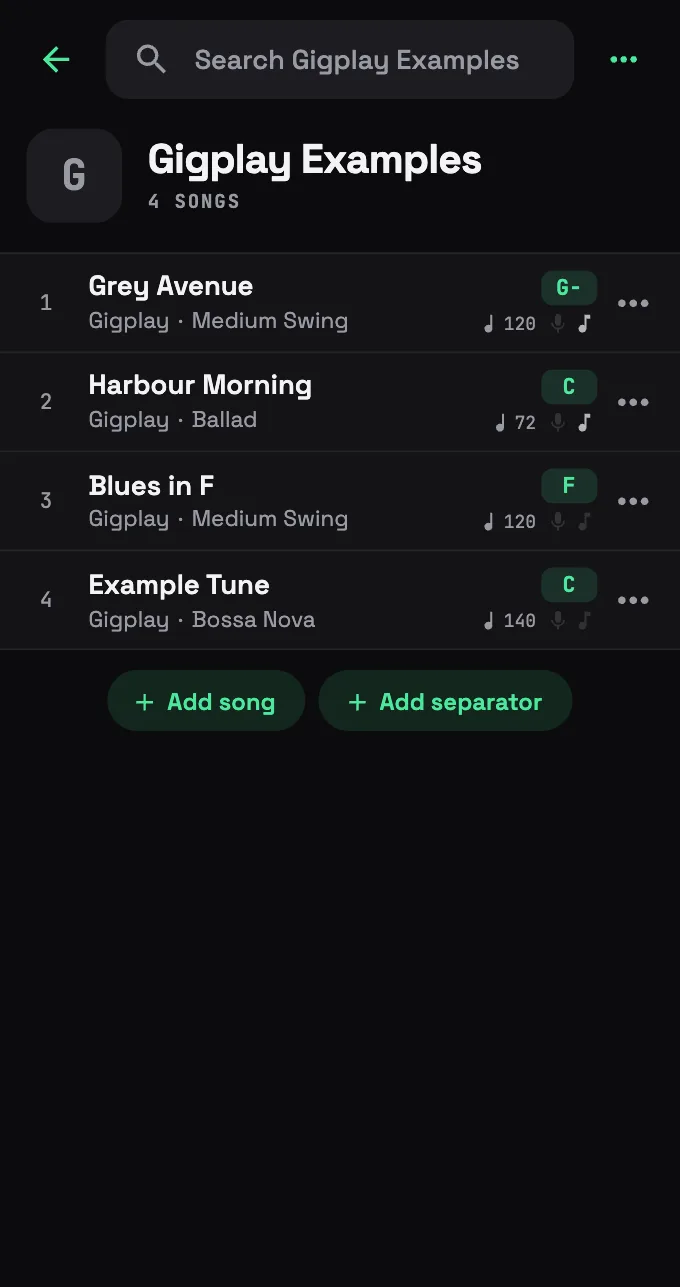
Playlists
- On the home screen, tap New playlist, type its name and tap Create.
- Tap Open in the message at the bottom, or tap the playlist.
- Tap Add song, then Add from library…. Tap the songs in the order you want them, then Done.
Add song also offers Add from another playlist… and New song…. From any song, its ⋯ menu has Add to playlist….
To change the order, hold a song and drag it. Separators mark the sets: Add separator, type a label such as "2nd set", tap Add; it moves like a song. The playlist's ⋯ button (Playlist options) has Sort alphabetically, Shuffle, Rename… and Delete playlist, which keeps its songs in your library.
A song's key, tempo, repeats and style are remembered in each playlist apart (Transposing, The band).
Groups and favourites
- Groups: tap New group, name it, tap the playlists to put in it and tap Create. Tap a group to fold or open it; its ⋯ button has Rename group… and Ungroup. A playlist's ⋯ button has Move to group…. Hold a playlist and drag it to reorder them.
- Favourites: Add to favourites is in a song's and a playlist's ⋯ menu. They show at the top of the home screen, your songs together in Favourite songs.
Smart lists
Tap Smart lists. Its sections: Repertoire (by Styles, Composers, Lyricists, Performers, Tags, Time signatures, Decades), Progressions, What they have (a melody, lyrics, your notes, chords only, versions), How you use them (Edited by you, Not viewed lately) and To fill in (Unfiled songs in no playlist, songs with no tempo, style or composer).
Searching
- The whole library: tap Search on the home screen and type. It looks in titles, composers, lyricists, performers, styles and tags, in any word order; accents, capitals and small typos do not matter. Settings, Home and search chooses what it looks in (Lyrics too) and whether a word finds its translations.
- A playlist: its search box finds its songs and, under Library, songs not in it; their ⋯ menu has Add to this playlist.
- In a song: the magnifying glass at the top searches the list you opened it from.
Searching by chord progression
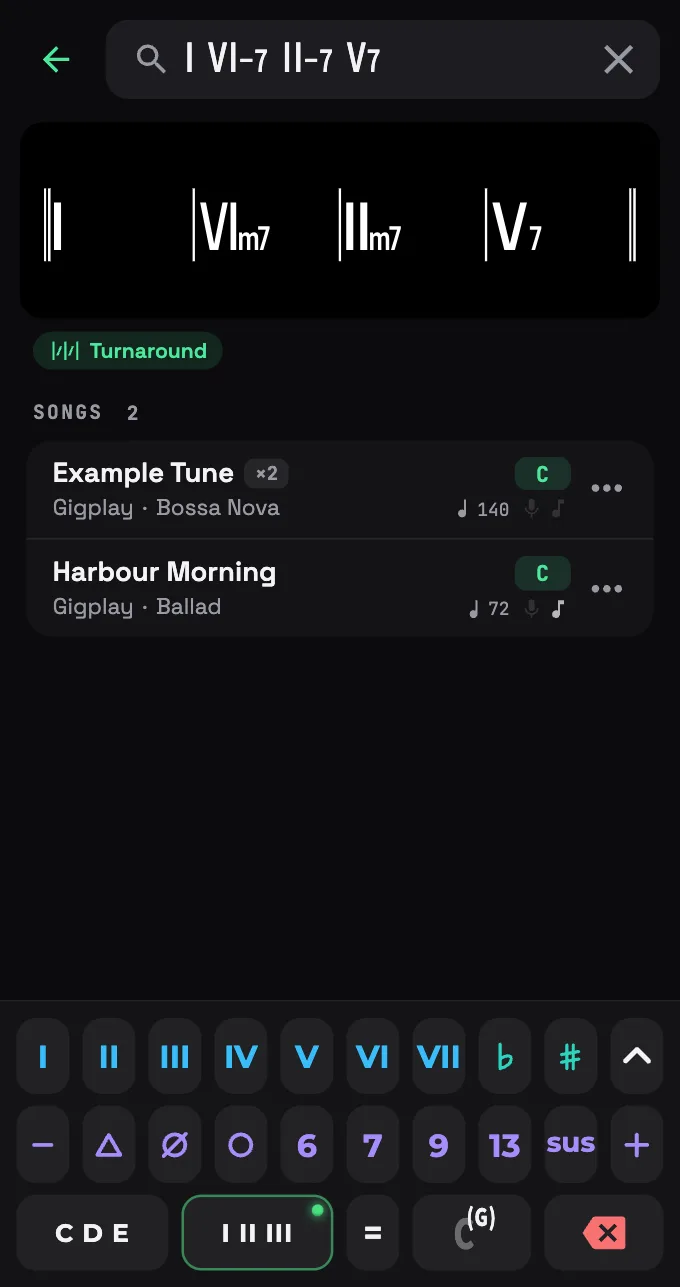
- Tap Smart lists, then Search a progression.
- Type chords with the keys at the bottom, as notes (Em7 A7 D) or as degrees (IIm7 V7 I).
It finds songs in any key, those with it most first. A plain chord also finds richer ones of its kind (Dm finds Dm7 and Dm9); Exact chords (the = key) finds them only as typed. Save adds it to your smart lists.
Deleting and the Trash
Remove from playlist takes a song out of one playlist. Delete song takes it out of the library and every playlist, into the Trash. There, a song's ⋯ button has Restore and Delete permanently.