Gigplay reads its own files and songs from other apps: MusicXML, ChordPro, ABC and the iReal Pro format. This page shows how to bring them in, and how to go back if an import was not what you wanted.
What Gigplay reads
- A Gigplay file (
.gigplay): a song, a playlist or a whole backup, sent from Gigplay. - Songs from other apps, in the formats they share them in: MusicXML (
.musicxml,.xml,.mxl) from notation programs, ChordPro (.cho,.chordpro,.chopro,.crd), ABC (.abc), and the iReal Pro format (a page,.html, a backup or a playlist link).
Gigplay takes from each what it holds: the chart from MusicXML's chord symbols, repeats and endings, with the melody and the lyrics; ChordPro's lyrics with their chords, a chart from them, and the title, composer, key and tempo; each ABC tune as a song, with its chart, melody, composer and style; the iReal Pro format's playlists. A file of several songs comes in as a playlist named as the file. Any other file is not imported: a notice says it isn't a Gigplay file, and nothing changes.
Opening a file with Gigplay
On your phone, tap the file where it arrived (a message in WhatsApp or another app, an email, your files) and choose Gigplay from the list of apps, where it is labelled Import. You can also share a file to Gigplay from another app, or tap a playlist link in the iReal Pro format. Gigplay opens and imports it.
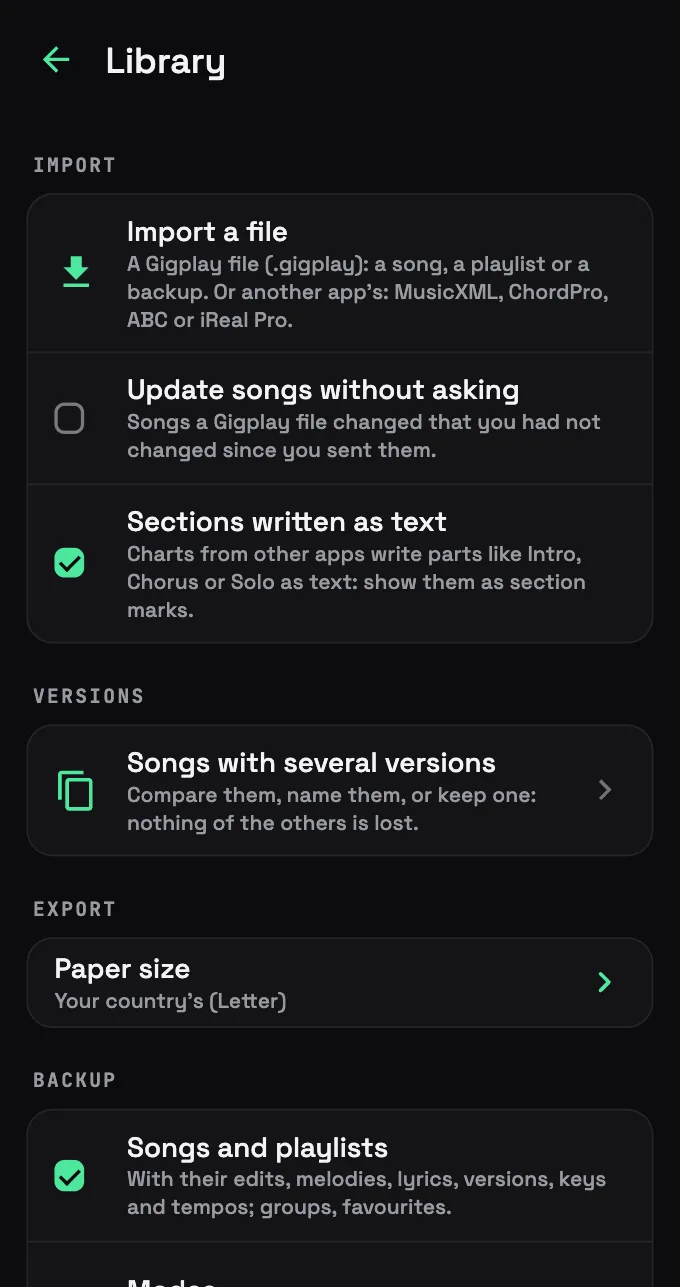
Import a file, from Settings
- On the home screen, tap Settings.
- Tap Library.
- Tap Import a file and choose the file.
What you see next
A Gigplay file, or a MusicXML, ChordPro or ABC file, with only new songs, or songs you already have exactly as they are, comes in at once. A notice says what came in (and any song it could not read), and the song or playlist opens.
When there is something to decide, the Import screen opens first. It groups the file's songs (New songs, Songs you have, Changed in the file, not by you, Changed by both of you, Other versions of songs you have, Songs you deleted…), each group with a choice already made that loses nothing. For a song changed by both of you, it is Keep both: the file's song is added beside yours as another version. You can pick Use the file’s or Keep mine instead.
Tap See songs to choose song by song. Compare shows your chart and the file's, with the bars that changed lit; for a song changed on both sides, Combine takes each passage from yours or from the file's. Then tap Import, or Cancel to leave everything as it was.
If you always want songs a bandmate changed (and you did not) to be updated, turn on Update songs without asking in Settings, Library.
A backup made with Gigplay opens the same screen, with more choices: see Sharing, exporting and backups.
A playlist in the iReal Pro format comes in as a new playlist, which opens. If you already have a playlist with the same name, Gigplay asks first: Add its new songs to yours, or Import it as a new playlist.
Undoing an import
Before an import changes anything you have, Gigplay keeps your library as it was. To go back, tap Undo on the notice that follows the import. Later, open Settings, Library, and tap the import under Restore points.
An import of a playlist in the iReal Pro format has no Undo: a playlist it added can be deleted like any other (see Playlists and your library).
Charts from other apps
Some charts write parts such as Intro, Chorus or Solo as text. With Sections written as text on (Settings, Library), Gigplay shows them as section marks.