The chord editor writes a chart: its chords, bars, sections, endings and repeats, and the song's details.
A new song
- Open a playlist and tap Add song under its songs.
- Tap New song….
- Type its Title and tap Create.
The song is added to the playlist and the chord editor opens on an empty chart. To change a song you already have, tap the song, then Edit in its menu.
The editor
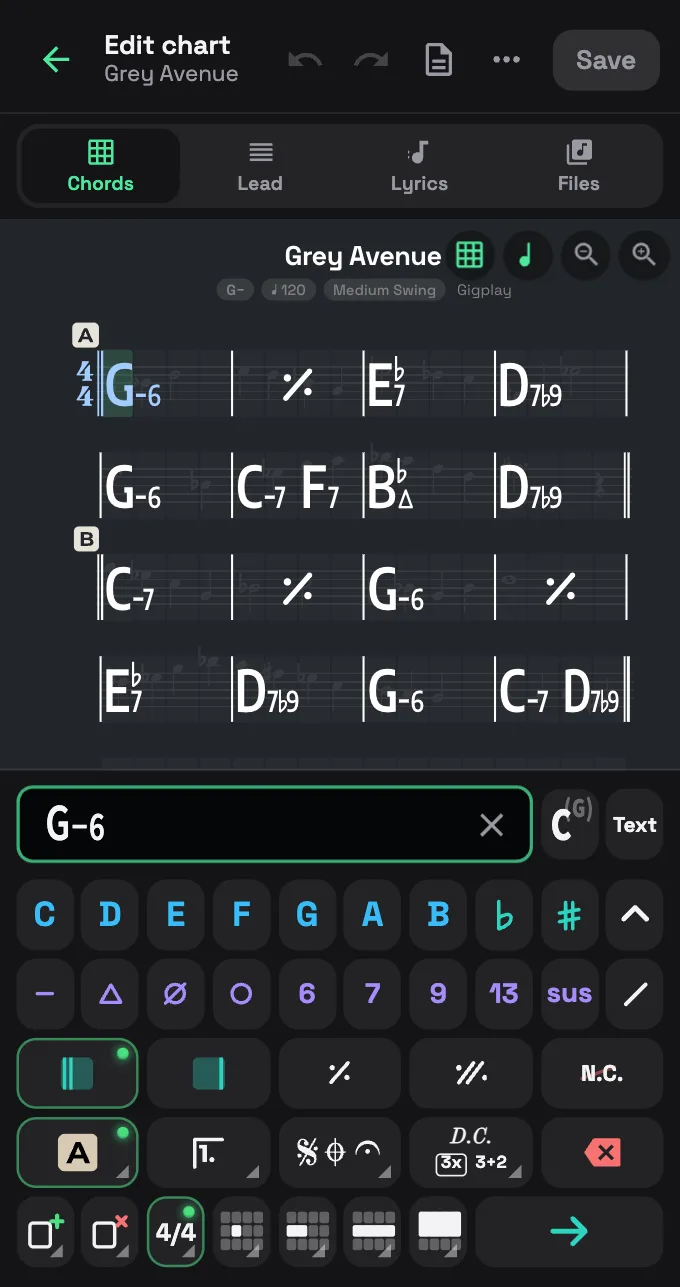
At the top are Close, Undo, Redo, Song info, the ⋯ button (More) and Save. Under them, four tabs: Chords (here), Lead and Lyrics (Melody and lyrics), and Files (Files).
Tap a cell of the chart to select it. Each bar is split into cells: a chord on a later cell falls later in the bar. Hold a cell to select several: Copy, Paste, Cut and Delete appear over them.
Typing a chord
Tap a note (C to B, with Flat or Sharp), then its quality: minor, major seventh, half-diminished, diminished, 6, 7, 9, 13, sus, and the slash for a bass note. The ^ key at the end of the notes (More keys) adds the other figures, augmented, alt and add. Tapping another note changes the root and keeps the rest: Dm7 becomes Cm7.
The chart draws the chord as you type it. A red Not a chord says the text is not a chord; an amber Unknown chord, that it is kept and drawn as written, but Gigplay does not know how it sounds.
The arrow key (Next) goes to the next cell; past the last cell a new row appears. The ✕ in the field is Clear chord. The key beside the field writes an Alternate chord, small above the chord, and Text writes a word under the bar.
Bars, signs and structure
- The two barline keys change the barline on the left and on the right of the cell: tap again for the next kind (single, double, repeat).
- Two keys repeat the previous one or two bars; N.C. is No chord.
- Section marks where a section starts: A to Z, Intro, Verse, Chorus, Bridge and others.
- Ending puts a 1st, 2nd or later ending on the bar.
- Marks: Segno, Coda, Fermata, Caesura.
- Directions: D.C. and D.S. al Coda or al Fine, Fine, and how many times a repeat is played (2x, 3x…).
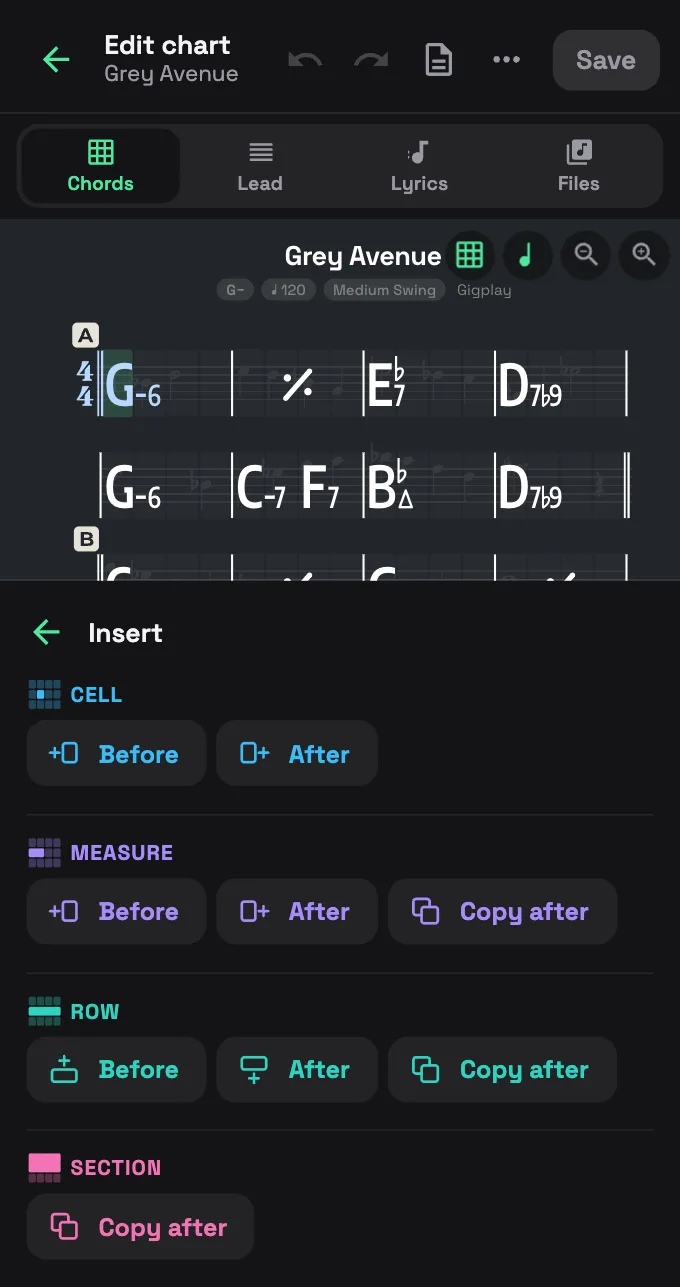
- Insert adds a cell, a bar or a row, or copies one after itself; Delete takes one away.
- Time signature changes the time from the selected bar on.
Each key with a small corner opens its choices in the keys' place; the arrow (Back to the keys) closes them.
Song info
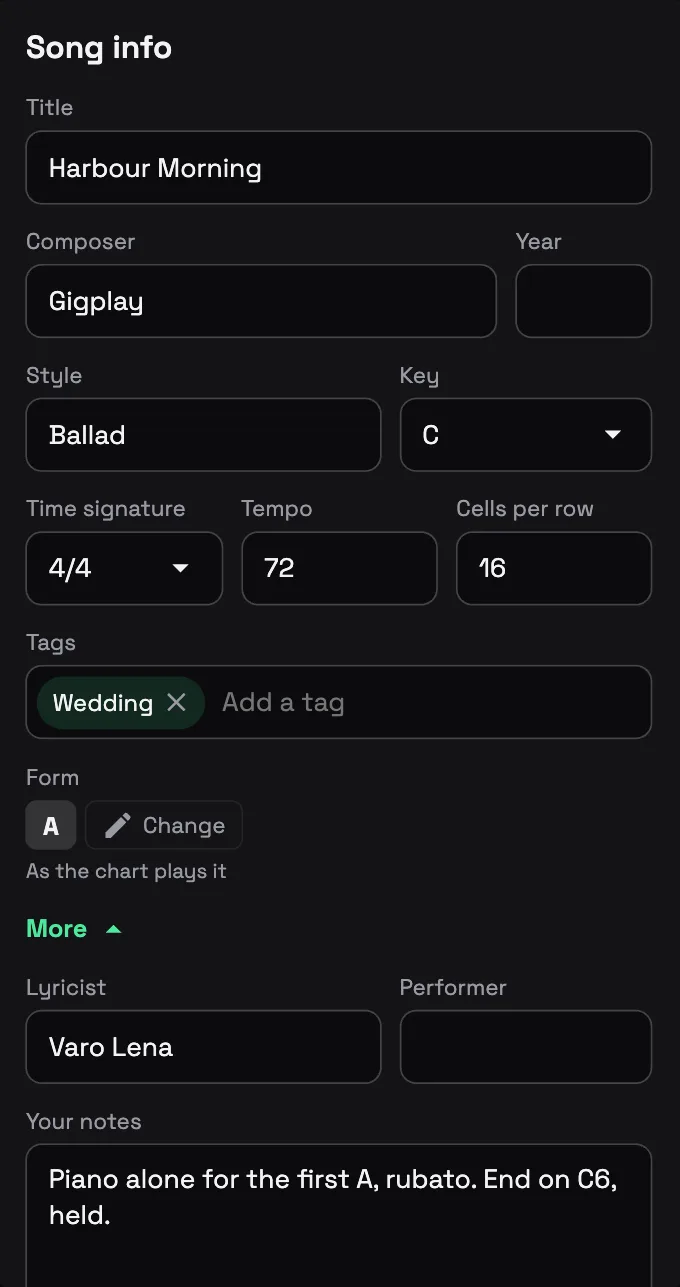
Song info, at the top of every tab, has the Title, Composer, Year, Style and Tempo; in the Chords tab, also the Key, Time signature, Cells per row and Form.
Tags sort songs your own way ("wedding", "2nd set"): type one, then a comma or Enter. Tags used before are offered as you type.
More has the Lyricist, the Performer and Your notes; folded, it names those the song has. Done keeps it all.
Saving, and going back
Save keeps your changes and goes back to the song. Close with changes not saved asks first: Discard your changes?
To go back to the song as it was before your edits, open the ⋯ menu and tap Revert to original, then Revert. Your edits are lost.